
We have reviewed key aspects of office network organization – network segmentation (VLAN), router and Wi-Fi configuration, antivirus protection (using Kaspersky Lab solutions as an example), video surveillance integration, as well as recommendations on which services are better moved to the cloud (including the XORit cloud) and what to keep local.
Importance of proper network organization
A properly designed office network is the foundation of stable business operation. Without subnetting and protective measures, the local network turns into a “flat” chaos: all devices see all traffic, load increases, security decreases. As a result, any infected device can directly attack others, and the administrator finds it difficult to control access. Proper network organization solves these problems, improving performance, security and scalability infrastructure.
Network segmentation (VLAN and subnets)
Example of network segmentation: A single cable between switches carries data from several isolated networks at once, while computers and servers “see” only their own network and do not interfere with each other
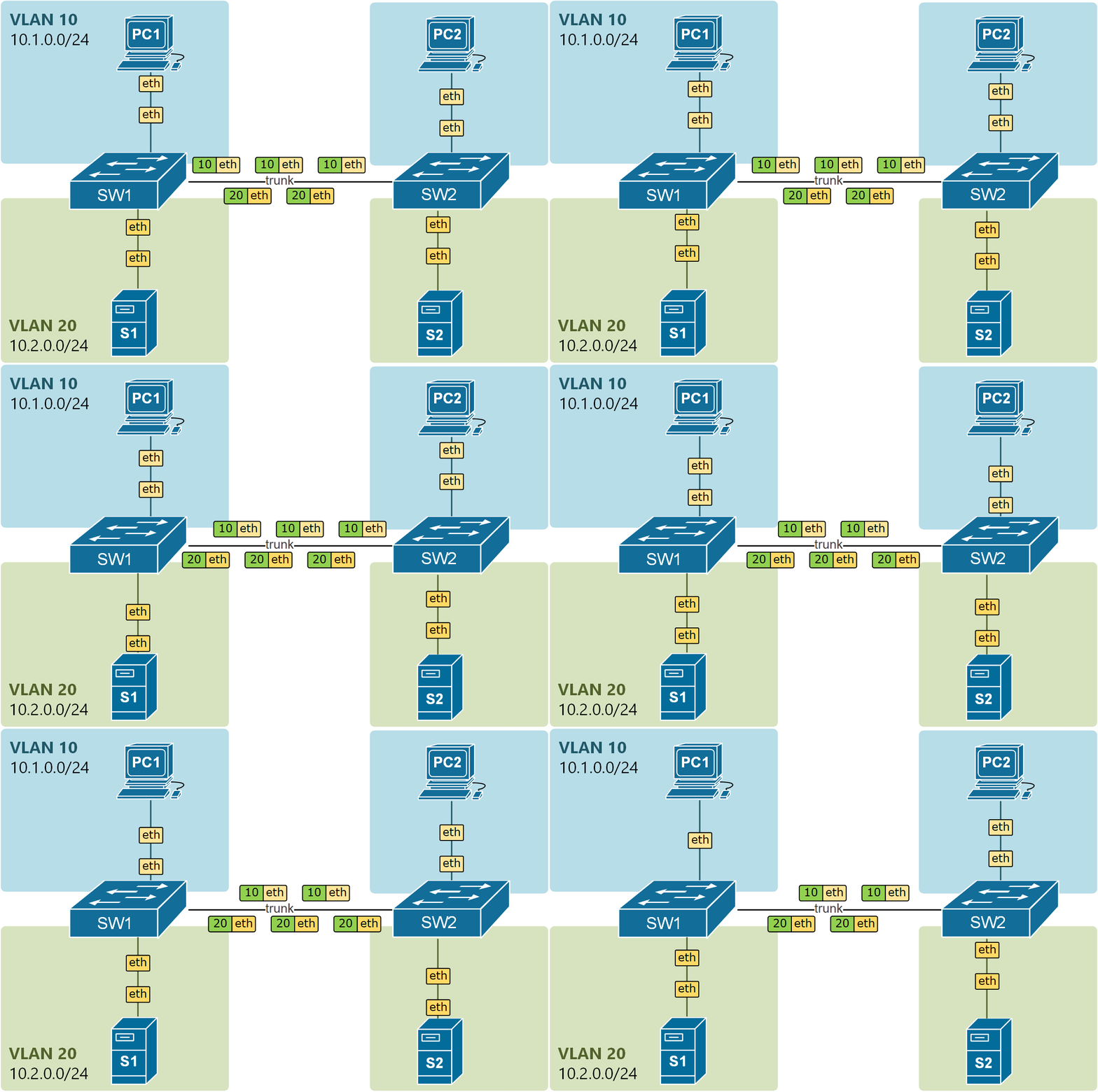
image taken from an article on the website https://www.networkacademy.io/ccna/ethernet/trunk-native-vlan
Network segmentation – is the division of one large local network into several isolated segments (subnets). In practice, it is most often implemented via VLAN (Virtual LAN) on managed switches. VLAN allows physically connected devices to be separated into different logical networks without laying new cables. This provides a number of advantages:
- Less excess traffic: broadcast requests (for example, ARP, DHCP) stay within their segment and do not “pollute” the entire network. For example, accounting computers will not receive broadcast requests intended for IP phones, and vice versa.
- More security: devices from one VLAN are isolated from another by default. Guest Wi-Fi can be placed in a separate VLAN so that visitors do not have access to the company’s internal network (printers, files, services). Thus, a client connecting to the guest network ‘WiFi_Guest’ will not see employees’ documents or resources.
- Managed access: the administrator can set different rules for different segments. Each department or service gets its own subnet and its own gateway where traffic is filtered. For example, VLAN 20 for office computers, VLAN 30 for surveillance cameras, VLAN 40 for the guest Wi-Fi network.
How to implement VLAN in the office: you will need a managed switch and VLAN support on the router or a separate router. Devices are configured so that switch ports are bound to specific VLANs (so-called Access ports), and traffic between network equipment is transmitted through trunk ports with 802.1Q tagging. As a result, each VLAN functions as a separate subnet with its own IP addresses and can have its own firewall rules.
Recommendation: separate key device groups into different segments. For example, office PCs and servers into the main network, surveillance systems into a separate VLAN, guest devices into a guest VLAN, etc. Also, critical nodes (e.g., accounting databases, CRM) can be isolated in their own subnet with limited external access (demilitarized zone, DMZ). Remember to explicitly restrict traffic between VLANs using access control lists (ACLs) on the router or L3 switch. Allow only the necessary minimum – for example, IT admin access to the server segment, and block the rest. This “principle of least privilege” in network segmentation enhances security by making it harder for threats to spread between segments.
Router and Wi-Fi: security basics
Router (gateway) – is a device that connects the office network and the Internet. It often acts as a firewall and Wi-Fi access point. Proper configuration of the router and wireless network ensures that outsiders cannot access your internal resources. Key recommendations:
- Security Wi–Fi: make sure you are using a modern encryption protocol – WPA2 or WPA3, not the outdated WEP. WPA3 is the newest and most reliable security standard, encrypting traffic so that it cannot be intercepted. A complex Wi-Fi password is mandatory; it should be changed periodically and not use the manufacturer’s default passwords (for example, “admin”/”admin”).
- Separate guest network: if clients, contractors, or guests visit the office, do not connect them to the main network. Set up a guest Wi-Fi network on the router (with a separate SSID and password). Such a guest network is isolated from the company’s internal resources – the guest can access the Internet but won’t “see” your servers, printers, or employee computers. This is easily implemented on most modern dual-band routers or access points that have a Guest Network feature.
- Changing standard settings: immediately after installing a new router change the factory administrator password and disable remote access to the control panel (or restrict it by IP/time). Many attacks start by looking for routers with “admin/admin” login/password – don’t give attackers that opportunity.
- Firmware updates: regularly check for router firmware updates. Manufacturers release patches that close vulnerabilities. Without fresh updates, the router itself and all connected devices may be vulnerable to known attacks. The update can be done through the router’s web interface by downloading the firmware from the manufacturer’s website (don’t forget to save the current config before updating).
- Firewall: activate the built-in firewall on the router (the option is often called SPI Firewall or simply Firewall). It will filter incoming traffic from the Internet, blocking unwanted connections. For example, if you have no public servers, you can close all incoming ports. It also makes sense to disable the router’s response to external ping (WAN Ping respond) – to avoid giving out information about yourself to scanners unnecessarily.
- Secure administration: to manage the router, use HTTPS or SSH (if supported), instead of unencrypted HTTP/Telnet. This will protect your credentials from interception during setup. Ideally, perform configuration by connecting to the router with a cable rather than over Wi-Fi. Remember to save a backup copy of the router configuration after making changes – this will simplify recovery in case of failure.
A reliably configured router and Wi-Fi are the first line of defense for your network. Many cyberattacks start with the simplest—gaining access to an unsecured Wi-Fi network or hacking a poorly configured router. By following the listed measures, you will close the most obvious security holes.
Antivirus protection and cybersecurity of workstations
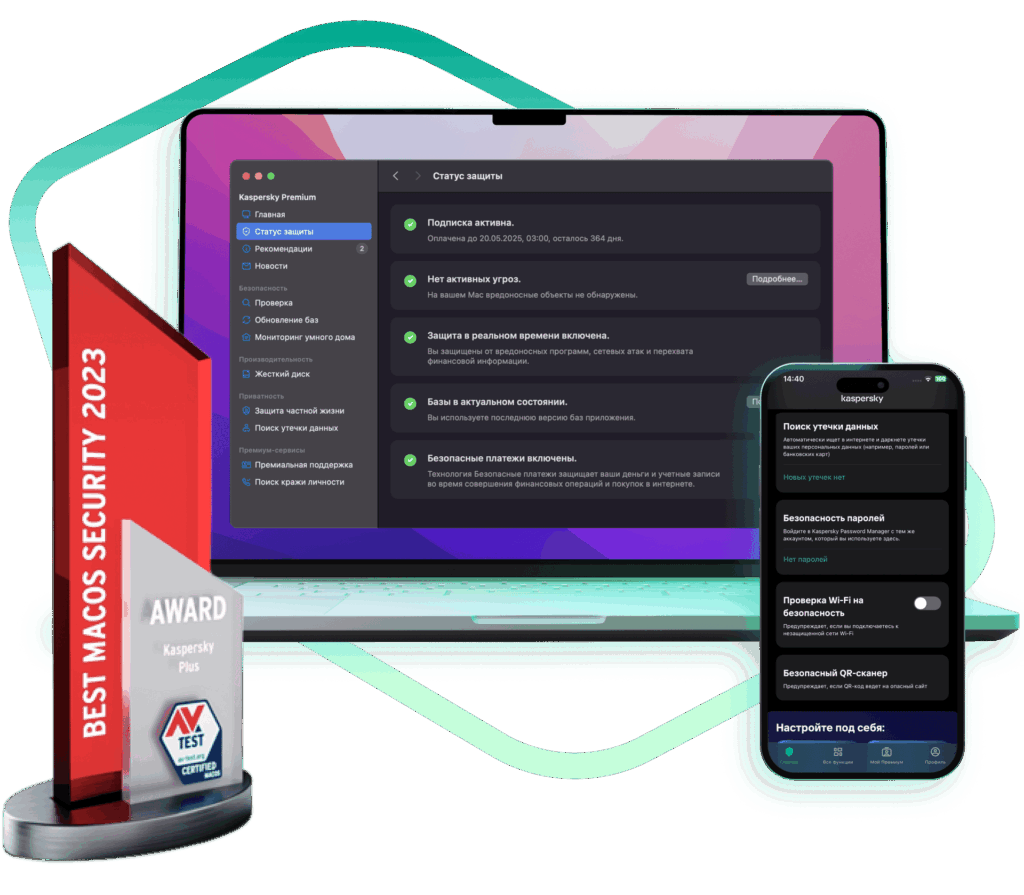
Timely threat detection: modern antivirus software (for example, WindowsDefender or Kaspersky) detects viruses and issues notifications, allowing you to take action quickly
Even the most segmented and protected network will not be secure if the computers in it are vulnerable. Antivirus software must be installed on all workstations and servers in your company. Key antivirus protection recommendations:
- One solution for all devices: choose an antivirus capable of protecting all used platforms – work PCs, laptops, mobile devices, file servers. It should detect viruses, spyware, ransomware (encryptors), and phishing attacks.
- Treatment and rollback: in addition to detection, a good solution can heal infected files and, if necessary, roll back the system to the state before the incident. This is especially valuable against ransomware attacks, when you can restore data from shadow copies or backups.
- Timely database updates: antivirus databases and the protection engine itself must be updated daily (or better yet, automatically). New threats appear constantly, and an antivirus without up-to-date updates will simply “not notice” them. Set up automatic updates over the Internet and make sure the license does not expire.
- Centralized management: in a business environment, centrally managed security is more convenient. Many vendors (including Kaspersky, ESET, Dr.Web) offer management consoles that allow deploying antivirus on all PCs, monitoring statuses, and receiving reports. For example, KasperskyEndpointSecurityCloud – a cloud console that does not require its own server to manage protection, which reduces the load on your IT infrastructure.
- Choosing a solution for SMB: for small businesses (up to ~25 employees), products designed for small networks are optimal. According to expert recommendations, KasperskySmallOfficeSecurity or KasperskyEndpointSecurityCloud will be a good choice due to ease of implementation and affordable price. These solutions are specifically designed for small companies: they do not require deep technical knowledge to install, but provide enterprise-class protection.
- Email and Internet protection: if you set up a local mail server or web gateway, you should additionally use specialized antivirus modules (for example, Kaspersky Security for mail servers or internet gateways). They will filter spam, phishing, and malicious traffic at the network perimeter, complementing endpoint protection.
- Staff training: no antivirus will help if users ignore basic security rules. Conduct briefings: do not open suspicious email attachments, do not insert ‘random’ USB flash drives, use complex passwords and password managers, update software on time. Create a cybersecurity culture in the company, where the employee is not a weak link but part of the defense.
Antivirus is a kind of “last line of defense” when a threat has already penetrated the device. Its task is to detect and neutralize the attacker before they cause serious damage. Regularly analyze antivirus logs and incidents: if a particular workstation constantly “catches” viruses, it may make sense to strengthen user training or check whether other security policies are violated.
Integration of video surveillance into the network
IP-security camera in the office. It is recommended to put cameras on a separate VLAN/subnet, restricting access to them and storing recordings on a separate recorder (NVR)
A video surveillance system is an integral part of security for a modern office. IP-cameras, connected to your network, require a special approach so as not to overload the channel and create vulnerabilities. Here are recommendations for organizing video surveillance in an office network:
- Separate segment for cameras: place cameras and the video recorder (NVR/DVR) in a separate subnet or VLAN. This isolates the heavy constant video traffic from the main office and improves overall security. As we mentioned, VLAN 30, for example, can be allocated for “Video Surveillance” – all cameras and NVR will go there.
- Controlled access: restrict access to cameras and the recorder from other segments. Ideally, only authorized devices (e.g., security workstation or the director) should view video. Set firewall rules: allow access to the NVR web interface only from a specific computer (or several), blocking all other attempts. Direct access to the to cameras from the office network is usually not needed – access to the NVR is sufficient.
- Blocking external access: protect cameras and the recorder from direct Internet access. If you need to view video remotely, set up a secure VPN connection to the office network or use a cloud video surveillance service with encryption. Port forwarding to cameras (especially with default passwords) is a huge security hole.
- Quality of service (QoS): video generates a constant high bitrate. If you have a single gigabit connection and many cameras, ensure sufficient bandwidth headroom. On managed switches, it makes sense to enable QoS – give priority to video surveillance traffic so that it does not suffer from, say, file downloads or backups. Enabling the option will also help IGMPSnooping to optimize multicast traffic (if cameras and NVR use it).
- Storage of recordings: video is usually stored locally – on the NVR itself (hard drive) or NAS. This makes sense, because streaming from multiple cameras to the cloud can ‘eat up’ the entire outgoing channel. However, backup of important fragments (for example, on motion or alarm) to cloud storage will be useful – in case of equipment theft or fire. XORit’s cloud, for example, can be used to store backup copies of the video archive for recent days.
- Power and network: many IP cameras support PoE (Power over Ethernet). This is convenient – the camera receives power directly from a PoE switch (as in the photo above). Make sure the PoE switch’s power budget is sufficient for all cameras. If the camera is installed far away, make sure the cable length is no more than 100 m or use a PoE extender/media converter.
- Camera security: do not forget that cameras are also computers. Change default passwords cameras during installation. Disable unnecessary services (for example, FTP/telnet access if available). Keep camera and recorder firmware updated – manufacturers often fix critical vulnerabilities that allow remote access to the device.
- Traffic separation: if you have a large system (dozens of cameras), consider physical separation: for example, a dedicated switch(es) and network video recorder only for cameras, connected to the main router by a single cable. This way the main office network won’t be overloaded with video at all. A small office with 4–8 cameras can get by with a logical VLAN as described above, but for 50+ cameras on large sites, multi-level segmentation is already implemented (separate VLANs for different camera groups, and a separate one for the storage system).
Properly implemented video surveillance does not interfere with network performance and does not give cybercriminals a new way in. In return, you get a complete view of the situation: cameras deter dishonest people from theft, help investigate incidents, and generally improve discipline. Just remember that the cameras themselves must be placed and aimed in accordance with personal data laws – inform employees and visitors with signs that recording is in progress.
Local infrastructure vs cloud: what goes where?
Cloud technologies give even small companies the same capabilities that were previously available only to large corporations. The question arises – what makes sense to move to the cloud and what to leave on local servers? Let’s consider the main points and use the capabilities of XORit cloud for the benefit of your business.
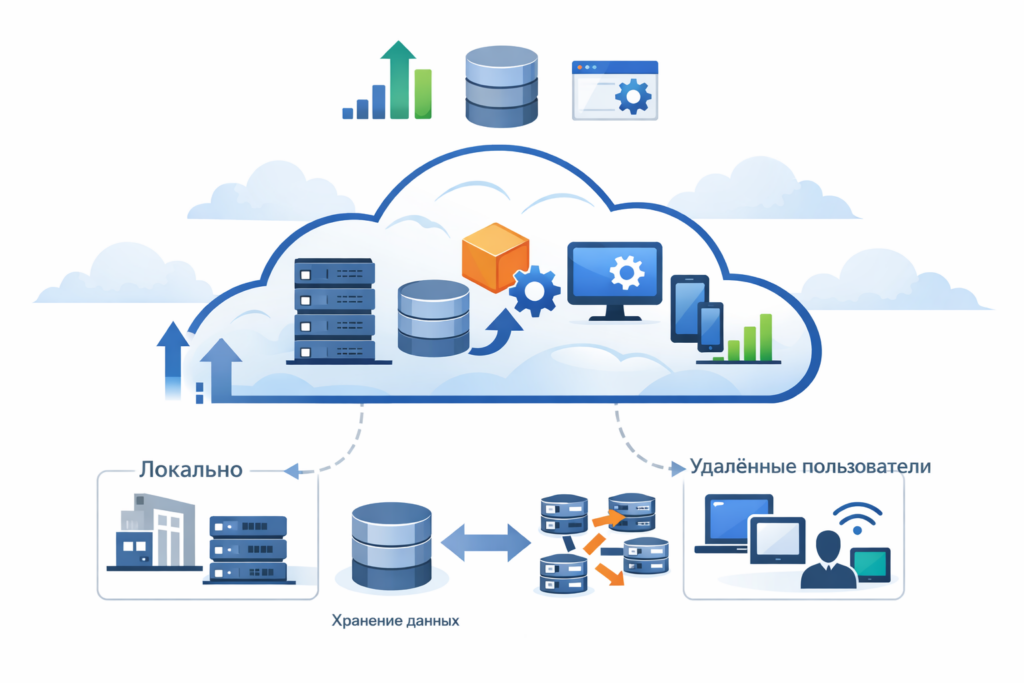
Schematic representation of cloud services: part of the infrastructure (icons) is moved to the cloud. The cloud allows flexible scaling of resources, storing data, and running applications remotely
Cloud advantages for business: for startups, small and medium companies, renting a cloud server is usually optimal choice – no large capital investment in equipment is needed, you pay as you use and can quickly scale resources as you grow. Here are the key advantages of cloud solutions:
- Flexibility and scalability: adding memory, CPU, or disk takes just minutes without buying hardware. As your business expands, simply increase your plan or virtual machine capacity. In a traditional model, you would have to purchase a new server or storage.
- Low entry barrier and savings: you don’t need to spend millions right away on your own server room. Cloud services operate on a model pay–as–you–go – you pay a small monthly amount, effectively turning capital expenses into operational ones. Savings on IT infrastructure are especially noticeable for small businesses.
- Updates and support are on the provider: the cloud provider (for example, XORit) handles equipment updates, software currency, security patch installation, etc. You don’t need to maintain a staff of administrators to support the hardware – you can focus on your business tasks.
- Access from anywhere: the cloud is by definition on the Internet – your employees will be able to work with corporate systems from anywhere (business trips, home), securely connecting via the Internet. This is convenient for distributed teams and branches – everyone uses a single resource without noticeable delays.
- Automatic backups and fault tolerance: most cloud platforms include built-in backup data and a failover mechanism (data can be replicated across multiple data centers). The risk of information loss is reduced – even if one server burns down, your systems will restart on another. In comparison, with a local server you would have to organize backup and disaster recovery planning yourself.
- Rapid deployment: you can set up a cloud server in hours, if not minutes. No need to wait for equipment delivery, installation, configuration – just register in the XORit cloud, select the necessary resources, and in a short time you will have a working server. This is especially valuable when you need to urgently launch a new project.
- Compatibility with modern services: cloud servers easily integrate with various SaaS platforms – from Office 365 to CRM systems. If your business already uses, say, cloud accounting or an email service, then moving the rest of the infrastructure into the same environment is a logical step.
What should be moved to the cloud: Practice shows that it is reasonable to move to cloud capacities those services that require reliability, remote access, and scalability. Here are a few examples for small/medium business:
- 📊 Accounting and bookkeeping (1C): Migration 1C in the XORit cloud will save you from having to maintain your own 1C server. Employees will be able to work in 1C over the Internet (via a secure channel) from the office, home, or business trips. Data is stored in a secure data center where backup is configured. You eliminate the risk of local server failure and simplify scaling (adding new users, updating configurations – all done on the provider’s side).
- 🌐 Website and email: It is better to host a corporate website in the cloud (on a dedicated or virtual server) right away. This will ensure round-the-clock availability for clients. The same applies to a mail server – it is easier to use a cloud service (for example, Microsoft 365 or another hosting) than to keep a mail server in the office. In the cloud, providers ensure that your website/email is available, updated and protected.
- 💾 Backup: Critically important data (databases, documents, projects) should be regularly copied to remote storage. XORit Cloud provides backup services where your archives are stored separately from the main infrastructure. In the event of a virus attack or physical incident (theft, fire), you can restore information from the cloud copy within hours.
- 📁 Public services: A VPN server for remote employee access, a server for file sharing with clients, test benches for new products—all of these make sense to keep in the cloud. You get a dedicated channel and data center power, and your office internet connection is not overloaded with extra incoming traffic.
When to keep on-premises: not all tasks are convenient to solve in the cloud. For example, heavyweight files with graphics or video (if they are constantly edited within the office) may be more efficiently stored on a local NAS server, so as not to depend on Internet speed for every save. Equipment requiring minimal latency – e.g., machine controllers or building security systems – is also better left locally or in a local network with minimal dependence on external channels.
Hybrid approach: Many companies come to maintain part of their infrastructure locally and part in the cloud. For example, if you work with graphical data – on a local server (on an array of fast SSD drives and a 10 Gbps network), and critical company data – in the cloud. Email, messengers, test environments make sense to move out of the office so they don’t consume resources and support time. In a hybrid model, it’s important to pay attention to connectivity and security: set up secure channels between on-premises and cloud components, synchronize backup, and monitor settings on both sides.
Conclusion: Cloud solutions give small and medium-sized businesses access to advanced technologies without huge investments. Using the XORit cloud for key services (such as 1C, backups, websites), you get enterprise-grade reliability and flexibility. At the same time, a well-thought-out local network (with segmentation, router protection, antivirus, etc.) ensures secure operation of office devices day after day. By combining these approaches, you can build an IT infrastructure that scales as the business grows, is resilient to failures and protected from threats – which means it will become a solid foundation for the further development of your company.
Translation editors: Соловьев В., Пеков А.