XORit Platform · AI and Teamwork

AI for documents, requests, and everyday work

XORit Platform brings together projects, tasks, documents, and payments with AI assistants. Recognize financial documents, process requests with Xora, and create tasks through OpenClaw. Employees review the data, make decisions, and oversee the results.

AI helps prepare the work. The team manages the outcome.

The team connects tasks, documents, and project stagesProjects · Documents · AI

AI for financial documents

Recognizing documents for incoming and outgoing payments

Upload an invoice, payment order, or other supported financial document to a task or project. AI can help extract the document type and number, date, amount, VAT, and the parties’ details. Review the suggested values and confirm them in the Platform.

  • Number and date
  • Amount and VAT
  • Tax IDs and parties
  • Incoming or outgoing payment
Collaborative document editing and review of recognized data
01 · Direction

Incoming and outgoing payments

For payment documents, the roles used are “Payer → Recipient.” The Platform suggests an incoming or outgoing payment if the payer’s or recipient’s tax ID exactly matches your organization’s tax ID. If there is insufficient information or the match is ambiguous, you need to select the direction manually.

02 · Confirmation

From invoice to plan, from confirmation to actual payment

Once the invoice data is confirmed, a planned incoming or outgoing payment is created and linked to the source document. A payment is recorded as actual when an employee confirms that the bank has executed it and links it to the relevant record. For a partial payment, the remaining balance is retained. Document recognition alone does not confirm that money has moved.

Local model for financial documents

Financial documents are recognized in a dedicated AI environment using a local model. PDF text is processed separately, while scans are sent for image recognition. An employee must review uncertain or unsupported values. This describes the document recognition workflow; other AI assistants are configured separately.

Integrations

AI assistants, email, and documents in your workflow

OpenClaw

OpenClaw: tasks from a conversation with an assistant

Ask a connected assistant to find an available project, check tasks, or prepare a new one. OpenClaw will create a task in the Platform on behalf of the linked employee and return its number and link. Access is limited by the employee’s permissions. In this workflow, files can currently be attached only through the Platform interface.

Xora

Xora: process a request and draft a reply

Assign a request to the Xora agent. The card shows the context provided to the agent, its plan, the result, and a draft reply. An employee reviews the plan and explicitly approves it. The completed draft can be copied into the reply form, reviewed, and sent separately. Approving the plan does not mean an email to the customer will be sent automatically.

Email

Email connected to your work

With a connection configured, employees can access their corporate email from the Platform interface. Emails sent to a shared mailbox can create tickets in an agreed queue. Replies continue the request thread, and attachments remain alongside the correspondence. An employee links the request to a business partner and routes the work to the appropriate project.

ONLYOFFICE

ONLYOFFICE: documents in the context of a task

Create documents from a task and edit them in your browser. Multiple employees can work on the same file. Project folders, access permissions, and source documents remain part of the workflow.

During implementation, we’ll agree on the mailboxes, employee access, OpenClaw profile, and required AI workflows. We’ll define what data each assistant receives and which actions require a person’s decision. We’ll confirm the integrations, hosting, and cost before launch.

Real interface

The Platform in action

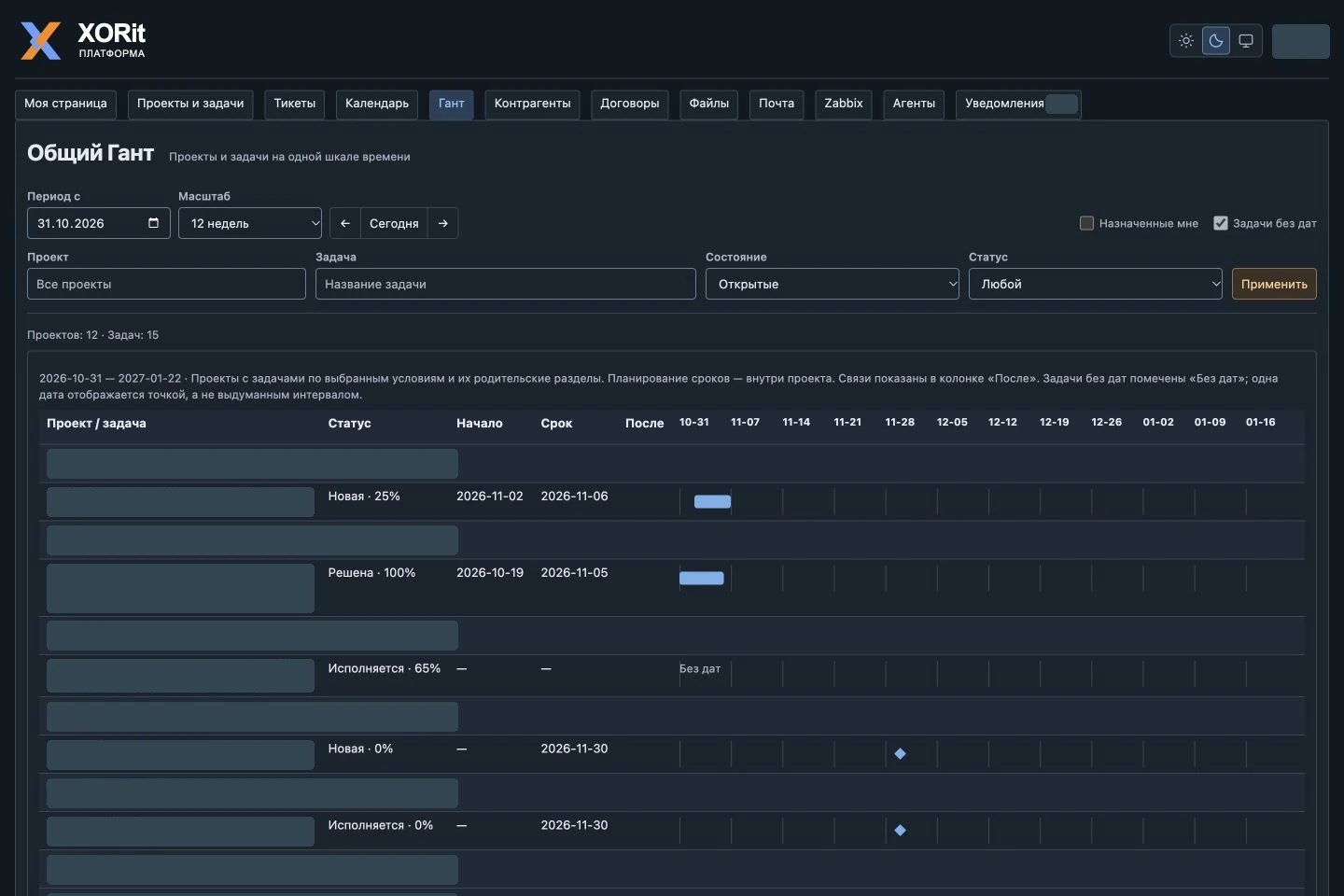
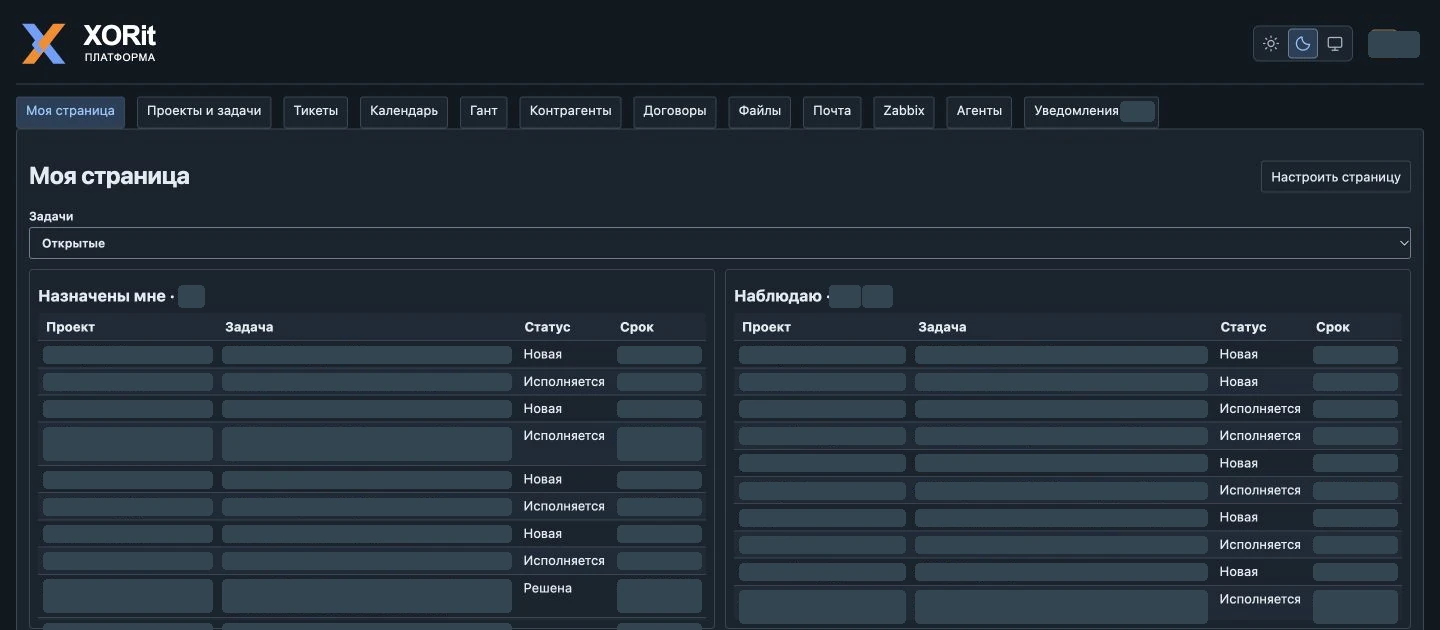
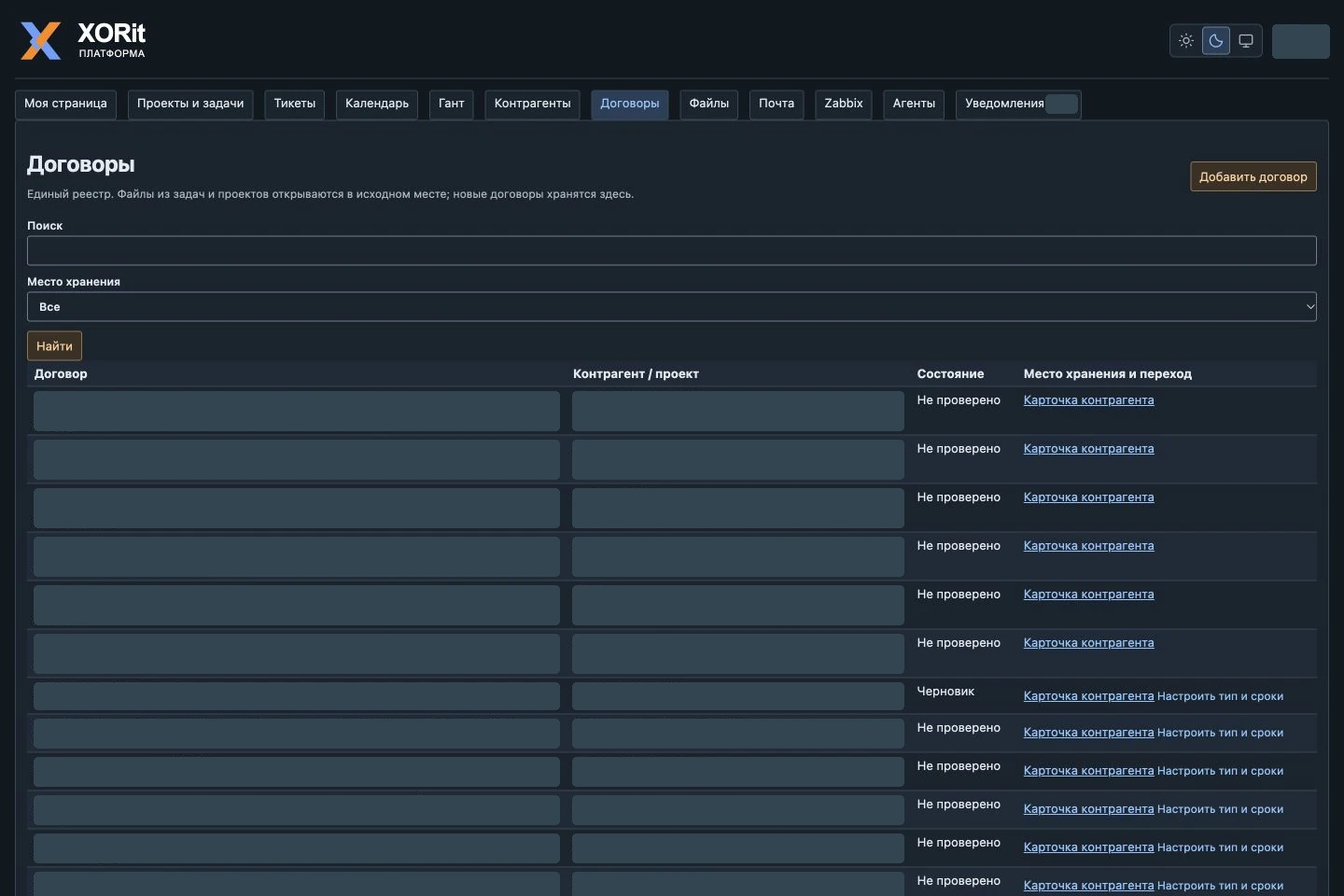
These are real Platform screens. Client, project, and document names are covered with opaque masks.

Everyday teamwork

Projects, documents, and payments are connected

Data from tasks, documents, and financial events is brought together in one place. You can see who is responsible for the work, its deadlines, where the source file is, and what confirms the payment.

01

Projects and tasks

Create projects and subprojects, assign owners and deadlines. Discussions, files, and change history are saved with the task. Shared search helps you find the work you need, while the Gantt chart shows project and task timelines.

02

Documents alongside the work

Upload files to project folders, create documents from a task, and edit them in your browser with ONLYOFFICE. Multiple employees can work on one document. Task files are stored in its folder, and access depends on the user’s permissions.

03

Contracts and payment deadlines

Work with a shared contract register and open the source file or linked task. Configure advance and post-payment rules, and record the actual dates of invoices, UPDs, and full payment. Contract terms and period confirmations are stored separately: updating a template does not change data from past periods.

04

Planned and actual payments

Track expected incoming and outgoing payments separately from confirmed payments. Attach supporting documents and view the project’s financial summary. Invoice recognition helps prepare a plan; a payment is recorded as actual only after a person confirms it.

Contract, confirmation, and link to financial events

Terms and accountability

Document, task, and confirmation together

Open a contract from the register, then go to the source file or linked task. Document deadlines, payment rules, and period confirmations keep the context of the obligations.

Access and accountability

Each employee has their own access

Permissions depend on the workspace, role, and project participation. The activity history helps you understand what changed. Document links open the source files according to the user’s permissions.

Email and Telegram notifications about contract deadlines are enabled explicitly. Recipients and notification rules are configured separately for each contract.

Demo and pilot

Start with your workflow

In the demo, we’ll walk through one of your team’s processes: a document, a request, or creating a task through an AI assistant. We’ll show document recognition, email handling, and how an employee oversees the result. Then we’ll agree on the integrations and pilot.

We’ll discuss workflows and participants, choose a pilot project, and configure access, documents, and the required integrations. After reviewing the pilot, we’ll agree on whether to expand it.

Implementation and support costs are calculated after discussing the number of users, modules, hosting, and integrations.

Before you start

Questions before the demo

Who is the Platform for?

For managers and teams who need to manage projects, tasks, documents, and payments, and link them to clients and responsible employees. In the demo, we’ll check whether the Platform suits your workflow.

Can we start with one project?

Yes. For the pilot, we select one workflow, define the participants, and test it using an agreed example. The scope of data migration is discussed separately.

What does document recognition do?

It helps extract data from a financial document so an employee can review it. An invoice creates a plan, while a confirmed payment is recorded as actual. The result must be confirmed manually.

Does the Platform replace accounting software?

The Platform can track planned and actual payments, store supporting documents, and let employees confirm contract deadlines manually. Accounting and tax records are maintained in your accounting system. Automatic generation of invoices and UPDs, as well as bank reconciliation, are not included in the current product scope.

How are integrations connected?

Before implementation, we define the systems, data, and permitted actions. Email, ONLYOFFICE, and AI connections are configured for the agreed workflow. We confirm the scope of work and cost before launch.


Request a call
or contact us

Request a call

    How data is processed · SmartCaptcha data notice

    Your request has been successfully
    sent

    We will contact you shortly,
    to discuss cooperation details

    An error occurred
    while sending the form

    Please try again later
    or contact us directly: